
Offline voice dictation & voice assistant for Windows - paste text anywhere, manage notes & reminders hands-free, and speak symbols & code directly (say forward slash, dash, one two three → / - 123).
🌐 getwrither.com · ⬇️ Download · 🎬 Demo video





⚠️ First-launch note: WritHer downloads the speech model from Hugging Face on first start, and their CDN is occasionally very slow. If it stays on "Downloading speech model..." for a long time: quit from the tray and relaunch (the download resumes on a fresh connection), or use the verified manual download procedure - a single PowerShell paste, no Python required.
- 🤖 OpenAI-compatible providers - the assistant now works with llama.cpp, LM Studio and any OpenAI-compatible local server, not just Ollama. Pick the provider in Settings; models are discovered automatically via
/v1/models, and each provider keeps its own URL and model settings. (thanks @aladin7) - 🖼️ Clipboard keeps your images and files - dictating no longer destroys non-text clipboard content: screenshots, copied files and other formats are preserved and restored after the paste. If you copy something new while WritHer is pasting, your fresh copy wins. Restore delay is configurable via
CLIPBOARD_RESTORE_DELAY. (thanks @aladin7) - 👻 Quit really quits - closing WritHer from the tray now always terminates the process. No more invisible ghost instance holding the single-instance lock and blocking the next launch.
- 🚀 Visible first-launch feedback - the widget now appears right away with a "Downloading speech model…" status and animated loading eyes while the model loads, then confirms "Ready - hold ‹your hotkey›". No more silent minutes where the app looked dead.
- 👋 Welcome toast - the very first launch ends with a Windows notification explaining both hotkeys. If the model download fails (no internet on first launch), a clear error state and toast tell you what to do.
- 🔁 Second-instance toast - launching WritHer twice now shows "WritHer is already running" instead of exiting silently.
- 📚 Custom vocabulary - teach WritHer to render your spoken jargon or acronyms as their written form. Case-insensitive whole-word matching, multi-word spoken forms supported. Priming terms also feed faster-whisper's
initial_promptto nudge recognition. - 🔢 Symbol & spelling mode (opt-in) - enable in Settings and say "forward slash", "dash", "semicolon", or number words to get actual characters. Spell code letter-by-letter: "W H forward slash F A T" →
WH/FAT. Contractions (don't,we're) stay intact and prose is never mangled. - 🌐 Recognition language dropdown - pick Whisper's language independently of the UI:
Auto(default),en,it,de. The detected language is logged for every clip. - 📋 Clipboard restore (default) - your clipboard is saved before paste and restored after. Optional toggle keeps the transcript in the clipboard for re-pasting.
- 🔒 Single-instance lock (per-session) - launching a second copy exits immediately. Now scoped to the current Windows user so it does not block other users on the same machine.
- 🎨 Per-mode colour themes - dictation widget renders in cyan, assistant in violet.
- ⌨️ Combo hotkeys - assistant hotkey is now
Ctrl+Alt+R(avoids browser conflicts). Settings window captures live key combos. - 📜 Log viewer in Settings - tail the latest log lines directly from the Settings window.
- 🗑️ Delete by voice - say "delete the dentist appointment" or "remove the shopping list" and WritHer finds and removes it. Voice confirmation required before any deletion (15s timeout).
- ⌨️ Customizable hotkeys - change dictation and assistant shortcuts from Settings. Press the ⌨ button, hit any key, done. No restart needed.
- 🎙️ Microphone selection - pick your input device from Settings, with hot-plug refresh
- 🔄 Toggle recording mode - press once to start, press again to stop (alternative to hold)
- ⏱️ Safety timeout - auto-stops recording in toggle mode if you forget
- 🎨 Redesigned UI - CustomTkinter with unified Pandora Blackboard theme (pure black + bright white)
- 🖥️ Resizable Notes window - drag to resize, maximize/restore, DPI-aware
- ⚡ Faster Ollama responses - timeout increased from 10s to 30s for larger models
- 🐛 Bug fixes - clean shutdown, widget positioning, visual artifacts removed
- 🔌 Reliable mic switching - select any microphone (USB, Bluetooth, AirPods) from Settings and switch on the fly without restart. Tested with Bluetooth HFP devices.
- 📦 Standalone exe - download and run, no Python installation required. Whisper model downloads automatically on first launch.
- ⚙️ Full Settings panel - Ollama model/URL, Whisper model, language, microphone, recording mode - all configurable from the tray menu.
- 🎯 Toggle mode fix - resolved issue where Ctrl+Alt+R required double-press to start recording. Added debounce to prevent key-repeat interference.
- 🎤 Sample rate fix - microphones with 48kHz default (e.g. Logitech C310) now work correctly. Audio is recorded at 16kHz when possible, resampled if not.
- 📁 Portable data paths - database, logs, and recovery files stored in %APPDATA%/WritHer when running as exe, preventing permission issues.
- ✓ Cleaner widget feedback - assistant confirmations show minimal icons instead of long text that overflowed the widget.
💬 Feedback welcome! If you test WritHer with different microphones or setups, please open an issue and let us know how it goes. Your feedback helps improve the app for everyone.
WritHer sits quietly in your system tray and gives you two super-powers:
| Mode | Hotkey (default) | What it does |
|---|---|---|
| Dictation | AltGr |
Transcribes your voice and pastes the text directly into whichever app has focus - editors, browsers, chat windows, anything. Optional Symbol & spelling mode substitutes spoken symbols and digits. |
| Assistant | Ctrl+Alt+R |
Understands natural-language commands and saves notes, creates appointments, sets reminders, manages lists - all by voice. |
Both hotkeys are fully customizable from the Settings window, click the ⌨ button next to each shortcut and press your preferred key. The change takes effect immediately, no restart required.
Both hotkeys support two recording modes, configurable from the Settings window in the system tray:
| Recording mode | How it works |
|---|---|
| Hold (default) | Hold the key to record, release to stop. |
| Toggle | Press once to start recording, press again to stop. A configurable safety timeout auto-stops the recording if you forget. |
Everything runs locally: speech recognition via faster-whisper, intent parsing via Ollama or an OpenAI-compatible local server such as llama.cpp, and data stored in a local SQLite database. No cloud required, no account, no telemetry.
- Real-time dictation - speak and text appears. Supports both hold-to-record and toggle (press to start/stop) modes. Clipboard is saved and restored automatically (opt-in toggle to keep the transcript in the clipboard).
- Custom vocabulary - a user-defined map of
spoken form → written form, applied whole-word and case-insensitively before any symbol substitution. Multi-word spoken forms and longest-first precedence are supported. Editable from Settings and persisted in the SQLite DB. - Priming terms - a free-text list joined into faster-whisper's
initial_promptto bias recognition toward domain terms. Labelled best-effort in the UI hint. - Symbol & spelling mode (opt-in) - toggle in Settings. When ON, spoken symbol names and number words are substituted ("W H forward slash F A T" →
WH/FAT, "one two three" →123, "semicolon" →;) and letter-by-letter spelling is glued. Contractions likedon'tare preserved and prose is never mangled: multi-character words on either side of a symbol block gluing. - Recognition language - independent of the UI language. Set to
Auto(default) to let Whisper detect each clip, or pin toen/it/de. - Voice-controlled assistant - save notes, create shopping/todo lists, schedule appointments, set reminders, and delete items by voice. All through natural speech.
- Voice delete with confirmation - say "delete the shopping list" or "remove the dentist appointment". WritHer finds the item by keyword and asks for voice confirmation before deleting. 15-second timeout for safety.
- Smart date parsing - say "remind me tomorrow at 9" or "meeting next Monday at 3pm" and the LLM converts relative times to absolute datetimes.
- Toast notifications - get Windows notifications when reminders fire or appointments are approaching.
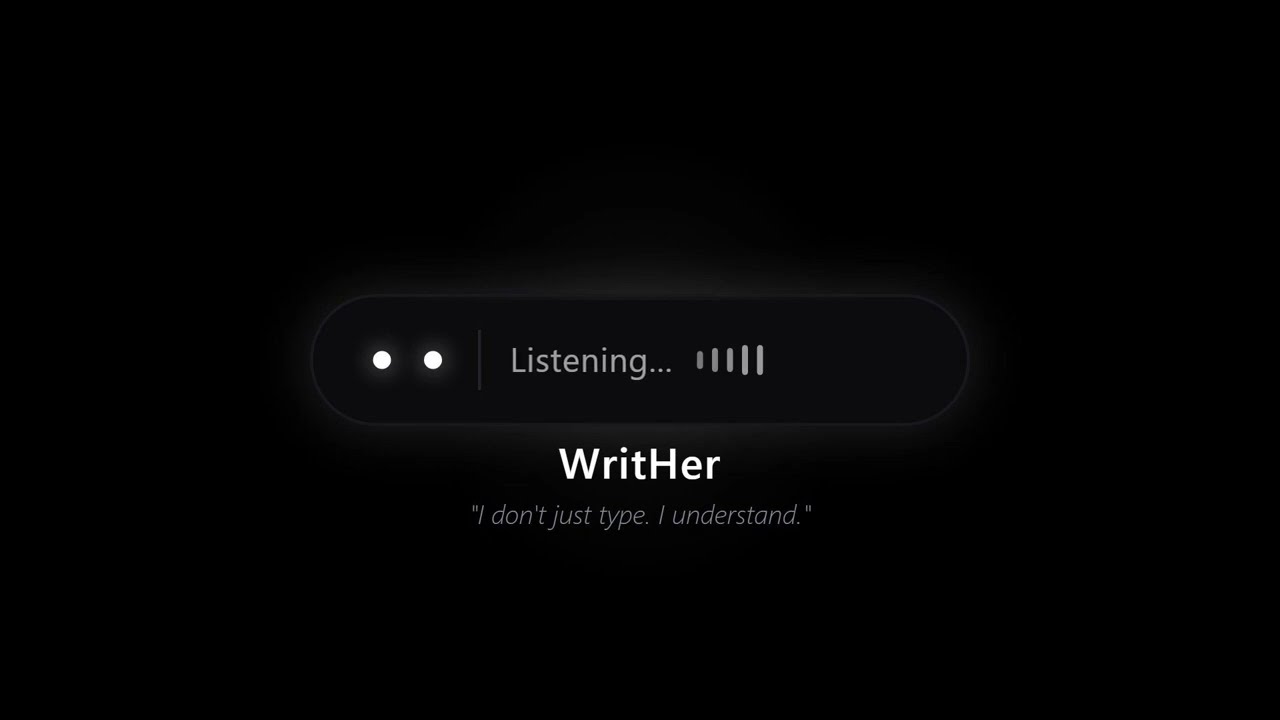
- Animated floating widget - a minimal pill-shaped overlay with expressive "Pandora Blackboard" eyes that react to state (listening, thinking, happy, error, etc.). Cyan for dictation, violet for assistant.
- Notes & Agenda window - a dark-themed resizable window to browse, check off list items, and delete notes/appointments/reminders. Supports maximize/restore and drag-to-resize.
- Settings window - configure recording mode, max recording duration, keyboard shortcuts, and microphone device directly from the system tray. All settings are persisted across restarts.
- Customizable combo hotkeys - reassign dictation and assistant keys (including multi-key combos like
Ctrl+Alt+R) from the Settings window. Blocked keys are rejected, duplicate detection prevents conflicts. - Microphone selection - choose your input device from a dropdown in Settings. Supports hot-plug detection with a refresh button - no restart needed.
- Single-instance protection - a per-session mutex prevents two copies running at once, eliminating the double-paste bug.
- Modern UI - built with CustomTkinter and a unified "Pandora Blackboard" theme (pure black + bright white) defined in a single
theme.pyfile. - Multi-language UI - ships with English, Italian and German; easy to add more via the
locales.pystring table. - Log viewer - the Settings window tails the latest lines of
writher.logfor quick diagnostics. - Fully offline - no internet required after model download.
┌──────────────────────────────────────────────────────┐
│                     main.py                          │
│            (orchestrator + Tk event loop)             │
├──────────┬───────────┬───────────┬───────────────────┤
│ hotkey   │ recorder  │ widget    │ tray_icon          │
│ listener │ (audio)   │ (overlay) │ (system tray)      │
├──────────┴───────────┴───────────┴───────────────────┤
│                                                      │
│  Dictation pipeline          Assistant pipeline      │
│  ┌───────────┐               ┌───────────┐           │
│  │transcriber│               │transcriber│           │
│  │ (Whisper) │               │ (Whisper) │           │
│  └─────┬─────┘               └─────┬─────┘           │
│        ▼                           ▼                 │
│  replacements.py             assistant              │
│  (user vocab +               (Ollama LLM             │
│   opt-in symbols)            + function calls)       │
│        │                           │                 │
│        ▼                           ▼                 │
│   injector                    database               │
│  (clipboard                  (SQLite)                │
│   + Ctrl+V)                        │                 │
│                              notifier                │
│                          (toast scheduler)            │
└──────────────────────────────────────────────────────┘
- Windows 10/11
- A working microphone
- Internet connection on first launch (to download the Whisper speech model)
- A local LLM server for assistant mode: Ollama or an OpenAI-compatible server such as llama.cpp. Dictation works without either.
Ollama setup: download and install from ollama.com, then pull the configured model, for example:
ollama pull llama3.1:8bOllama runs as a background service on Windows. If the assistant hotkey is triggered while Ollama is not reachable, WritHer shows a toast notification and aborts the request - dictation is unaffected.
OpenAI-compatible setup: start a local server with chat-completions and tool-call support, then choose OpenAI-compatible in WritHer Settings. For llama.cpp the default URL is
http://localhost:8080/v1; function calling requires a compatible chat template and the server's--jinjaoption.
⚠️ The URL is meant for local servers. Nothing stops you from pointing it at a remote/cloud endpoint, but doing so forfeits WritHer's offline and privacy guarantees - your assistant commands would leave your machine.
- Download
WritHer-v1.4.1-win64.zipfrom the latest release - Extract to any folder
- Install and start Ollama or another supported local LLM server (only needed for assistant mode)
- Run
WritHer.exe - On first launch, the Whisper model is downloaded automatically from Hugging Face (if the download is slow or looks stuck, see Troubleshooting)
- Right-click the tray icon for Settings and Notes & Agenda
git clone https://github.com/benmaster82/writher.git
cd writherpython -m venv venv
venv\Scripts\activateRequires Python 3.11+
pip install faster-whisper numpy sounddevice pynput pystray Pillow requests winotify customtkinterOptional: install
plyeras a fallback notification backend:pip install plyer
python main.pyWrither appears in the system tray. Hold AltGr to dictate, hold Ctrl+Alt+R for assistant commands. Make sure the provider selected in Settings is running before invoking the assistant.
All settings live in config.py:
# Hotkeys (defaults - can be changed from Settings at runtime)
HOTKEY = Key.alt_gr                                          # Dictation
ASSISTANT_HOTKEY = (frozenset({"ctrl", "alt"}), KeyCode.from_vk(82))  # Ctrl+Alt+R

# UI language ("en", "it" or "de") - controls interface strings only.
LANGUAGE = "en"

# Recognition language (Whisper). None = per-clip auto-detect.
WHISPER_LANGUAGE = None

# Clipboard behaviour after paste. False = restore previous clipboard.
KEEP_TRANSCRIPT_IN_CLIPBOARD = False

# Seconds to wait before restoring prior clipboard contents.
CLIPBOARD_RESTORE_DELAY = 0.5

# Recording mode
HOLD_TO_RECORD = True          # True = hold key, False = toggle (press/press)
MAX_RECORD_SECONDS = 120       # Safety timeout for toggle mode (seconds)

# Microphone
MIC_DEVICE_NAME = None         # None = system default, or device name (str)

# Whisper
MODEL_SIZE = "small"           # tiny, base, small (default), medium, large-v3
DEVICE = "cpu"                 # "cpu" or "cuda"
COMPUTE_TYPE = "int8"          # int8, float16, float32

# Assistant provider: "ollama" or "openai"
ASSISTANT_PROVIDER = "ollama"

# Ollama settings
OLLAMA_URL = "http://localhost:11434"
OLLAMA_MODEL = "llama3.1:8b"

# OpenAI-compatible local server settings
OPENAI_URL = "http://localhost:8080/v1"
OPENAI_MODEL = ""                  # Discovered from /v1/models in Settings
OPENAI_API_KEY = ""             # Optional; leave empty for local servers

# Notification lead time
APPOINTMENT_REMIND_MINUTES = 15
Note: Recording, microphone, hotkey, assistant provider, assistant model, and assistant URL settings can also be changed at runtime from the Settings window in the system tray. Changes made there are persisted in the database and override
config.pydefaults.
| Model | Size | Speed | Accuracy |
|---|---|---|---|
tiny |
39 MB | ⚡ fastest | basic |
base |
74 MB | ⚡ fast | good |
small |
244 MB | moderate | better (default) |
medium |
769 MB | slower | great |
large-v3 |
1.5 GB | slowest | best |
The
smallmodel is the default because it handles symbol and code spelling (e.g. "forward slash") reliably. Thebasemodel can mishear multi-word phrases and is not recommended for code dictation.
Set DEVICE = "cuda" and COMPUTE_TYPE = "float16" in config.py. CTranslate2 4.x needs the CUDA 12 and cuDNN 9 runtime libraries; either Windows setup works:
- Full CUDA Toolkit installed system-wide (its directories are already on the DLL search path), or
- NVIDIA pip packages inside your virtual environment -
pip install nvidia-cublas-cu12 nvidia-cudnn-cu12==9.*- WritHer detects them and adds their DLL directories automatically at startup.
If you see Library cublas64_12.dll is not found or cannot be loaded, the runtime libraries are missing or not discoverable - check writher.log for "Added NVIDIA DLL directory" lines to confirm the pip packages were found.
Hold mode (default):
- Focus any text field (editor, browser, chat…)
- Hold
AltGr - Speak
- Release - transcribed text is pasted automatically
Toggle mode:
- Focus any text field
- Press
AltGronce to start recording - Speak
- Press
AltGragain to stop - transcribed text is pasted automatically
In toggle mode, a safety timeout (configurable in Settings) will auto-stop the recording if you forget to press the key again.
Off by default. Enable the toggle in Settings to substitute spoken symbol names and number words, and to glue letter-by-letter spelling. Prose stays intact - the spacing compaction only fires when both neighbours of a symbol are single characters or digit sequences, so "The 100 meter dash was thrilling" becomes "The 100 meter - was thrilling" rather than gluing across words. Contractions like don't and we're are always preserved.
| You say | You get |
|---|---|
forward slash |
/ |
back slash |
\ |
dash / hyphen / minus |
- |
semicolon |
; |
colon |
: |
double colon |
:: |
underscore |
_ |
asterisk |
* |
at sign |
@ |
hash sign |
# |
open bracket / close bracket |
( / ) |
open curly / close curly |
{ / } |
open square / close square |
[ / ] |
new line |
↵ |
one two three … nine |
1 2 3 … 9 |
Spell code identifiers letter-by-letter and spaces are removed automatically:
- "W H F A T" →
WHFAT - "W H forward slash F A T" →
WH/FAT - "one two three dash four five six" →
123-456
Hold mode (default):
- Hold
Ctrl+Alt+R - Speak a command
- Release - Writher processes and confirms
Toggle mode:
- Press
Ctrl+Alt+Ronce to start recording - Speak a command
- Press
Ctrl+Alt+Ragain to stop - Writher processes and confirms
Example commands:
- "Save a note: remember to buy milk"
- "Create a shopping list: bread, eggs, butter, coffee"
- "Add pasta to the shopping list"
- "Appointment with the dentist tomorrow at 3pm"
- "Remind me to call Marco in one hour"
- "Show me my notes"
- "Show my agenda"
- "Delete the dentist appointment"
- "Remove the shopping list"
- "Delete the reminder about Marco"
Right-click the tray icon to access:
- Notes & Agenda - open the notes/appointments/reminders viewer
- Settings - configure recording mode (hold vs toggle), max recording duration, keyboard shortcuts, and microphone device
- Quit - exit WritHer
Tip: Windows may hide the tray icon in the overflow area (the ^ arrow). To keep it always visible, go to Settings → Personalization → Taskbar → Other system tray icons and enable WritHer.
- Open
locales.py - Add a new entry to the
_STRINGSdictionary (copy"en"as a template) - Set
LANGUAGEinconfig.pyto your language code
writher/
├── main.py              # Entry point and orchestrator
├── config.py            # All user-configurable settings
├── hotkey.py            # Dual-hotkey listener with hold/toggle modes (pynput)
├── hotkey_util.py       # Hotkey serialisation, display names, and validation
├── recorder.py          # Microphone recording (sounddevice)
├── transcriber.py       # Speech-to-text (faster-whisper)
├── replacements.py      # Two-layer post-processing (user vocab + opt-in symbols)
├── injector.py          # Clipboard paste into active app (Win32 API)
├── assistant.py         # Local LLM provider integration + function calling
├── database.py          # SQLite storage (notes, appointments, reminders, settings)
├── notifier.py          # Toast notifications + reminder/appointment scheduler
├── widget.py            # Floating pill overlay with animated eyes
├── notes_window.py      # Notes/Agenda/Reminders viewer window (CustomTkinter)
├── settings_window.py   # Settings window (CustomTkinter)
├── tray_icon.py         # System tray icon (pystray)
├── brand.py             # "Pandora Blackboard" icon renderer
├── theme.py             # Unified colour palette and font definitions
├── locales.py           # i18n string tables (EN, IT, DE)
├── paths.py             # Data-directory resolution (source vs frozen exe)
├── logger.py            # Rotating file + console logger
├── debug_keys.py        # Key event debugger utility
├── test_delete.py       # Unit tests for voice-delete feature
├── test_replacements.py # Regression tests for the two-layer replacement engine
├── test_hotkey.py       # Hotkey serialisation + conflict detection tests
├── requirements.txt     # Python dependencies
├── img/
│   └── logo_writher.png # Logo for README
└── LICENSE
AltGr not detected?
Run python debug_keys.py to see exactly what pynput reports for your keyboard. Some keyboard layouts map AltGr differently.
Assistant provider not reachable?
Verify that the provider selected in Settings is running and that its URL is correct. Start Ollama with ollama serve, or start your OpenAI-compatible server and include its /v1 base path in the URL. WritHer checks /api/tags for Ollama and /v1/models for OpenAI-compatible providers. If the health check fails, assistant mode shows an error while dictation continues to work.
Model download slow or stuck at "Downloading speech model..."? Models are fetched from Hugging Face on first launch, and their CDN occasionally throttles hard - we have measured the same connection dropping from 9 MB/s to 6 KB/s within minutes. Two ways out:
- Quit WritHer from the tray and relaunch. The stalled connection is replaced by a fresh one and the download resumes where it left off - this fixes it in most cases.
- Download the model manually (verified procedure, also works on machines where Hugging Face is blocked). Quit WritHer first, then paste this into PowerShell (change
$sizeif you use a different model):Or do the same by hand:$size = "small" # tiny | base | small | medium | large-v3 $dir = "$env:USERPROFILE\.cache\huggingface\hub\models--Systran--faster-whisper-$size" New-Item -ItemType Directory -Force "$dir\snapshots\manual" | Out-Null New-Item -ItemType Directory -Force "$dir\refs" | Out-Null Set-Content -Path "$dir\refs\main" -Value "manual" -NoNewline -Encoding ascii foreach ($f in "model.bin","config.json","tokenizer.json","vocabulary.txt") { Write-Host "downloading $f..." curl.exe -L -o "$dir\snapshots\manual\$f" "https://huggingface.co/Systran/faster-whisper-$size/resolve/main/$f" }
- Create this folder structure (replace
smallwith your model size):%USERPROFILE%\.cache\huggingface\hub\models--Systran--faster-whisper-small\ ├── refs\main <- a plain text file containing exactly: manual └── snapshots\manual\ <- put the 4 files below in here - Download these 4 files from
https://huggingface.co/Systran/faster-whisper-small/tree/main(browser or any downloader) intosnapshots\manual\:model.bin,config.json,tokenizer.json,vocabulary.txt - Relaunch WritHer - it will say "Loading speech model..." and start in about a second, with no network access.
- Create this folder structure (replace
No audio / microphone not found? WritHer uses the system default input device unless you select a specific one in Settings. If the widget shows "🎤 No microphone detected", check your Windows sound settings. You can also open Settings from the tray and use the microphone dropdown to pick the correct device. Hit the ⟳ button to refresh the list if you just plugged in a new mic.
"No speech detected" but microphone works? This usually means Whisper received audio but couldn't recognize speech. Common causes:
- Wrong input device selected (e.g. "Stereo Mix" instead of your actual mic) - check the microphone dropdown in Settings
- Microphone volume too low in Windows sound settings (aim for 70-80%)
- The default
smallmodel requires ~244 MB download on first launch; check the console for progress
Symbol substitution not working / weird output?
Enable "Symbol & spelling mode" in Settings - it is off by default. For reliable multi-word phrases ("forward slash", "less than") set the Whisper model to small or larger; the base default is fast and accurate for prose but can mishear multi-word symbol names.
Custom vocabulary not applying? Layer A runs case-insensitively and matches whole words. If your spoken form contains a symbol or punctuation, add it exactly as Whisper transcribes it. Layer A is applied before Symbol & spelling mode, so vocabulary entries always win over the built-in substitutions.
Text not pasting?
The injector uses Ctrl+V via the clipboard. Some apps with custom input handling may not respond. If injection fails, the text is saved to recovery_notes.txt so nothing is lost.
Tray icon not visible? Windows 11 hides new tray icons by default. Go to Settings → Personalization → Taskbar → Other system tray icons and enable WritHer to keep it always visible.
MIT - see LICENSE for the full text.
Core architecture - voice dictation pipeline, local LLM assistant integration, floating widget, notes/agenda/reminders, tray icon - is by benmaster82 (this repository).
Contributions to upstream via pull request:
| Contributor | Contribution |
|---|---|
| LeikeBaus | Unit test structure and coverage |
| LikeARealGinger | Voice-delete by keyword, localized confirmations |
| Steven Ohád | Appointment and reminder voice deletion, delete confirmation popup |
| Marcel Alsleben | Assistant dispatcher refactoring, pending delete handling |
| Aaron Dutton | OS-locale date/time formatting |
| aladin7 | OpenAI-compatible provider support (llama.cpp, LM Studio), multi-format clipboard preservation, clean shutdown hardening |
| MaxiKingXXL | Bare-modifier hotkey fix and CUDA DLL discovery on Windows - both root-caused with tested patches (RTX 40xx / Ada GPU testing) |
The following features originate from the fork by @rusty-bit and have been integrated into upstream - their commits are preserved in this repository's history:
- Combo hotkeys with live key capture (default assistant hotkey now
Ctrl+Alt+R) - Per-mode widget accent colours (cyan for dictation, violet for assistant)
- Log viewer in the Settings window
- German locale
- Single-instance lock (adapted to a per-session
Local\mutex here) - The spoken symbol / number substitution concept (redesigned here as the opt-in Layer B of
replacements.py, with contraction safety and stricter spacing rules)
WritHer is a young project and contributions are very welcome!
Here are the areas where help is most needed:
- macOS port - replace Win32 injection and winotify with macOS equivalents
- Linux port - same as above for Linux (xdotool, libnotify, etc.)
- New languages - just add an entry to
locales.py - Ollama model testing - report which models work best with function calling
- Bug reports and UX feedback - open an issue, any feedback is appreciated
If you want to contribute, feel free to open an issue to discuss your idea first, or just fork and submit a PR. No formal process required, just good intentions.
Built with 🎙️ faster-whisper · 🧠 Ollama · 🐍 Python