Manage your snippets with your preferred editor
Select them with your picker of choice
Track them with git as part of your configuration
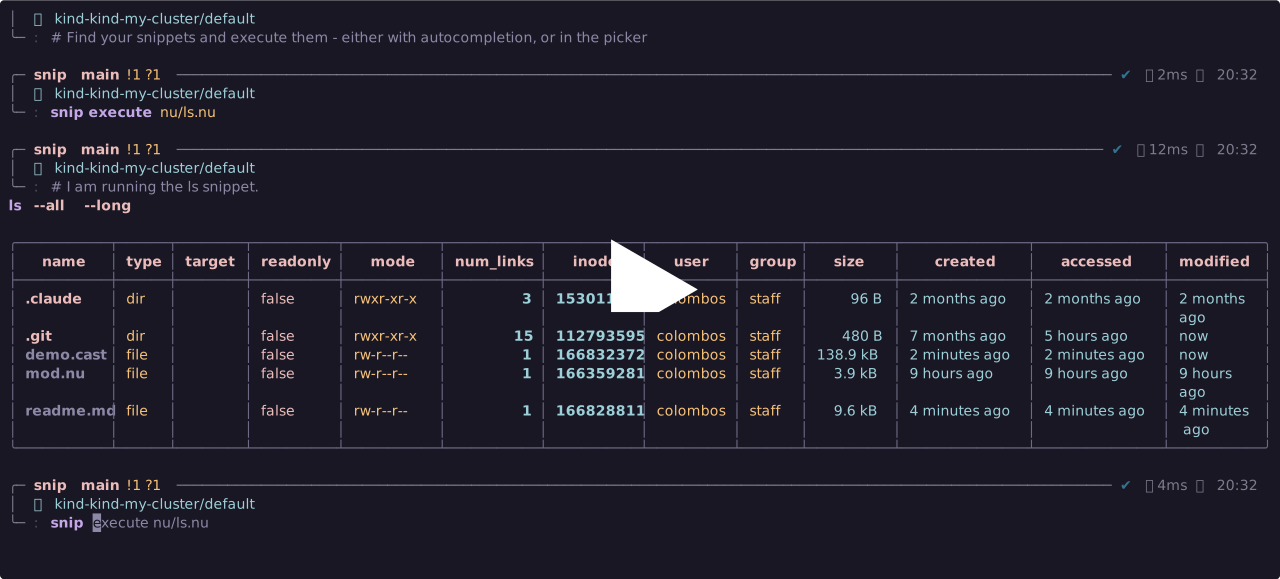
Snip is a powerful snippet manager in a file.
It stores your snippets as regular files.
It lets you easily track them with git and manage them with your editor of choice.
It let you access your snippets with an ergonomic cli and your favourite picker. You can run your snippets with first-class autocompletion or by selecting them in your favourite picker.
Snip stores your snippets as regular files on disk, and lets you manage them with your default editor - or any editor of your choice.
Snippets live by default under ~/.config/snip. Everything under that directory is a snippet.
The organization of the snip directory is free: you can group and organize your snippets as you please.
snip manage # open the snip directory in your configured editor
snip edit <snippet> # open a snippet in your configured editor
snip ls # list your snippets
The snip directory follows the xdg directory specification: you can override it by either setting XDG_CONFIG_HOME or SNIP_SNIPDIR.
Snip uses by default the editor you configured in $env.config.buffer_editor or $env.EDITOR.
If you'd rather use another editor to manage your snippets you can set $env.snip_config.editor as follows:
$env.snip_config = { editor: nvim }
$env.snip_config = { editor: ["emacsclient", "-s", "light", "-t"] } # the snippet (or the snip directory) is appended last.Snip exposes an ergonomic cli that lets you quickly find a snippet. The cli is based on the following principles:
- all arguments must provide autocompletion
- if a mandatory argument is not passed the user is required to select its value in the picker
So
# You can run commands providing all the necessary arguments, and have autocompletion
snip execute nu/ls.nu

# You can run commands providing no argument. You will be prompted to select one in the picker
snip execute

# You can even run commands providing ambiguous arguments.
# If your search matches more than a snippet, you will be prompted to select one in the picker
snip execute ls
Autocompletion reaches exactly as far as the cli does.
snip execute ls matches ls anywhere in the name, so Tab offers you the very snippets the command would have found - nu/ls.nu and connection-string/convert-mole-config-to-sqls.nu alike.
It reads your snippets, too.
The leading comment of a snippet becomes its description, and what you type is matched against descriptions as well as names.
A snippet headed # Render a LaTeX document answers to latex even when its name never says so.
Descriptions need a menu with room for them.
Nushell's default Tab menu is columnar and shows names alone; the ide menu shows the description beside them, on Ctrl+Space out of the box.
Put it on Tab if that is where you want it:
$env.config.keybindings ++= [{
  name: ide_completion_menu_on_tab
  modifier: none
  keycode: tab
  mode: [emacs vi_normal vi_insert]
  event: {until: [{send: menu name: ide_completion_menu} {send: menunext} {edit: complete}]}
}]
Snippets wear the colour of the directory they live in, so a long menu still reads as groups.
Names that need quoting get it, so a snippet called my snippet.nu completes into something the parser accepts.
Completion never blocks your prompt: it is a plain lookup that Nushell runs in the background, and the picker stays where it belongs - on a missing or ambiguous argument.
Set $env.snip_config.style to choose the colours yourself.
A style is a closure from a snippet to a colour name, or to a record of fg, bg and attr:
$env.snip_config = {style: {||
  if ($in.name | str starts-with "git/") { "red" } else { {fg: green attr: b} }
}}
The snippet it receives is the same record snip ls returns, so you can colour by name, by path, or by what is inside.
Choosing a snippet uses Nushell's built-in input list by default.
Set $env.snip_config.picker to swap the engine.
A picker is a closure from a list of snippets to one snippet:
list<record<name: string, content: string, path: string>> -> record | null
content is the body of the snippet, name is the relative path to the snip directory and path is the absolute path.
snip ls returns exactly those records, so a picker is a command you can run by hand against real data:
def my-picker [] {$in | first} # a picker that simply returns the first item
snip ls | my-picker
Write it, run that, watch it work. If it takes snippets and gives one back, it is a picker. Here is one example using skim's Nushell plugin.
$env.snip_config = {picker: {||
  (
    $in | sk
        --format { $in.name }
        --preview { $in.content }
        --preview-window "down:75%:wrap"
        --prompt "snippet "
  )
}}Editing a snippet is a change worth keeping.
Snip keeps it for you: when your editor exits, snip edit and snip manage commit whatever changed - one commit per invocation.
Nothing happens until you ask for it:
$env.snip_config = { auto_track: true }Or keep it in your hands. snip track records the snip directory on demand, with or without auto tracking configured:
snip trackSnip finds the repository by walking up from the snip directory, so snippets kept inside your dotfiles need no setup at all.
It stages and commits the snip directory alone. Whatever else you had in flight stays where you left it.
It stays quiet when there is nothing to do: no change, no commit. It speaks up when it cannot do its job: if the snip directory is not in a repository you hear about it, because you asked for tracking.
One requirement: your editor must block until you are done, exactly as git commit requires of $env.EDITOR.
An editor that returns immediately is committed before you have typed anything - code --wait, not code.
Commits are called update snippets. Set $env.snip_config.commit_message to call them something else:
$env.snip_config = { commit_message: "chore(snippets): update" }# clone into one of your NU_LIB_DIRS
let dest = [($env.NU_LIB_DIRS | first) semver] | path join
git clone git@github.com:lassoColombo/snip.git $dest
# use the module
use snip
snip ls
snip manage| Command | Signature | Description |
|---|---|---|
snip edit |
any -> any |
Open a snippet in the configured editor, then track the change if auto tracking is enabled. |
snip execute |
any -> any |
Insert a snippet's content into the current commandline. |
snip ls |
nothing -> table<name: string, content: string, path: string> |
List every snippet: what it is called, what is in it, and where it lives. |
snip manage |
any -> any |
Open the snip directory in the configured editor, then track the changes if auto tracking is enabled. |
snip text |
nothing -> string |
Print a snippet's content to stdout. |
snip track |
nothing -> nothing |
Record whatever changed in the snip directory with git. |
Open a snippet in the configured editor, then track the change if auto tracking is enabled.
Signature: any -> any
Parameters
| Parameter | Type | Description |
|---|---|---|
snip? |
string |
snippet name (regex against the relative path) |
Insert a snippet's content into the current commandline.
Signature: any -> any
Parameters
| Parameter | Type | Description |
|---|---|---|
snip? |
string |
snippet name (regex against the relative path) |
List every snippet: what it is called, what is in it, and where it lives.
Signature: nothing -> table<name: string, content: string, path: string>
Open the snip directory in the configured editor, then track the changes if auto tracking is enabled.
Signature: any -> any
Print a snippet's content to stdout.
Signature: nothing -> string
Parameters
| Parameter | Type | Description |
|---|---|---|
snip? |
string |
snippet name (regex against the relative path) |
Record whatever changed in the snip directory with git.
Signature: nothing -> nothing